Common Sportzfy Problems and How to Fix Them
Sportzfy can sometimes face errors that interrupt live sports streaming or prevent the app from working properly. Issues like buffering, crashes, black screens, server errors, and installation problems can have different causes. Fortunately, many of these problems can be resolved with simple troubleshooting steps. In this guide, we’ll cover the most common Sportzfy errors and practical solutions to help you get back to streaming smoothly.
Sportzfy Errors and Their Causes
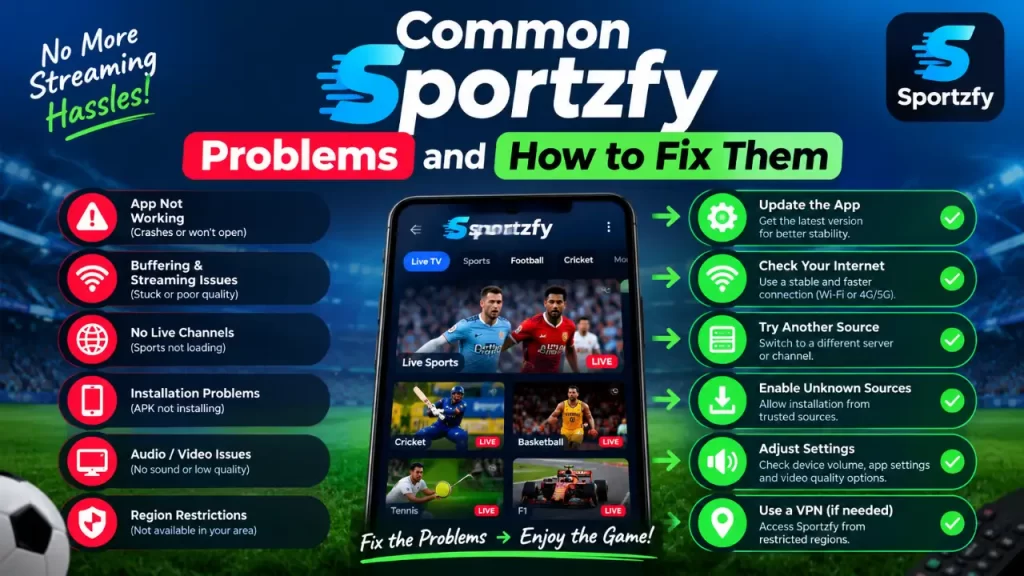
Sportzfy may occasionally show errors due to internet problems, outdated app files, device settings, or temporary server issues. Identifying the cause first makes troubleshooting much easier.
- Buffering: Usually caused by a slow or unstable internet connection.
- App Crashing: May happen because of outdated files, low storage, or device compatibility issues.
- Black Screen: Can result from playback problems or temporary app glitches.
- Channels Not Loading: Often linked to server downtime or network interruptions.
- Installation Error: May occur because of an incomplete APK file or incompatible Android version.
- Audio Problems: Can be related to device volume, media settings, or playback errors.
- Poor Video Quality: Usually connected to limited internet speed or automatic quality adjustments.
Review version updates and compatibility details to determine whether an available update may help address your issue.
Sportzfy New Version →Problems and solutions
Sportzfy App Is Not Opening
Sometimes the app may refuse to open or get stuck on the loading screen. Start by restarting your phone and opening Sportzfy again. If that does not work, clear the app cache and check that your device has enough free storage.
Sportzfy Keeps Crashing
If Sportzfy closes while you are browsing or watching a match, your device may be running low on available resources. Close apps you are not using and restart your phone. Clearing the cache can also help, especially if the app has been running for a long time without a refresh.
Channels Are Not Loading
When a channel refuses to load, first check your internet connection. Try another channel to see whether the problem affects everything or just one stream. If several channels are unavailable, the issue could be temporary and related to the streaming source.
Video Keeps Buffering
Constant buffering can quickly ruin a live match. Check your Wi-Fi or mobile data connection and move closer to the router if the signal is weak. You can also lower the video quality and pause other downloads or apps that are using your internet connection.
Black Screen During Playback
A black screen can appear when a stream does not start properly. Close the stream and open it again, or completely restart the app. If the problem remains, clear the cache and try another available stream to check whether the issue is limited to one channel.
Audio Is Not Working
If the video is playing but you cannot hear anything, check your phone or TV volume first. Make sure the media is not muted and check whether Bluetooth headphones or speakers are connected. Playing another stream can also tell you whether the problem is with the app or a specific channel.
Poor Video Quality
Blurry video is often caused by an unstable internet connection rather than the screen itself. Try using a stronger network and avoid running large downloads while streaming. If your connection is limited, lowering the video quality can make the stream more stable.
Sportzfy Shows a Server Error
Server errors can happen when the streaming service or a particular source is temporarily unavailable. Restart the app and check your internet connection before trying again. If the same message appears on several channels, waiting for the service to recover may be the only practical option.
Sportzfy APK Will Not Install
An APK may fail to install if the file is incomplete, incompatible with your Android version, or conflicts with an existing installation. Check the downloaded file and make sure your device has enough storage. It is also safer to use APK files from sources you trust rather than installing unknown files.
Sportzfy Stops Working After an Update
An update does not always work smoothly on every device. Restart your phone after updating and clear the app cache if Sportzfy starts behaving strangely. If the problem continues, check the compatibility of the installed version with your Android device and consider reinstalling it from a trusted source.
Sportzfy Is Not Working on Android TV
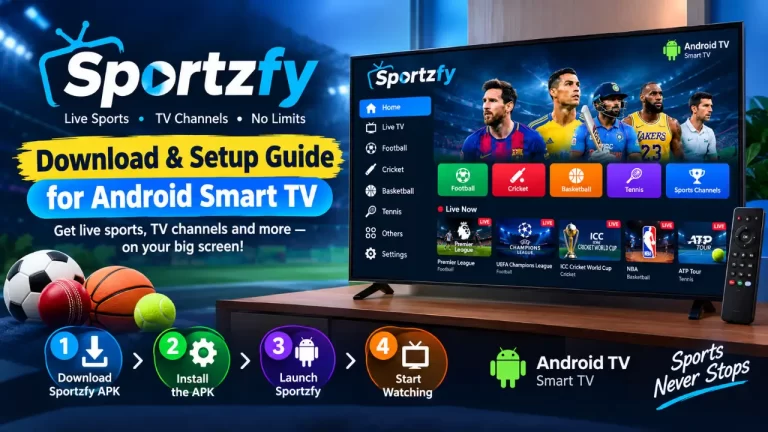
If Sportzfy works on your phone but struggles on Android TV, start by checking the TV’s internet connection. Restart the TV and clear the app cache from its application settings. Make sure there is enough storage and that the installed version is suitable for your TV.
Sportzfy Runs Slowly
A crowded device can make almost any app feel sluggish. Close unnecessary background apps and remove files you no longer need. After freeing some space, restart your device and open Sportzfy again to see whether its performance improves.
Streams Stop Suddenly
Live streams can occasionally stop without warning. Refresh the stream and give it a moment to reconnect. If it keeps stopping, try another channel because the problem may be limited to that particular source. When every stream is affected, check your internet connection.
Sportzfy Cannot Connect
If Sportzfy says it cannot connect, test your internet by opening another online service. Restart your router or switch from Wi-Fi to mobile data to see whether the connection is the cause. If other services work normally, the problem may be temporary or related specifically to the streaming service.
Sportzfy Search Is Not Working
When the search function stops responding, close and reopen the app before trying again. Clearing the cache may also remove temporary data causing the problem. If search results still do not appear, you can browse the available categories manually and try the search again later.
Sportzfy Keeps Loading
A stream that stays on the loading screen usually points to a connection or source problem. Check your internet speed and try opening another channel. Restarting the app and clearing its cache can also help if temporary data is preventing the stream from starting.
Sportzfy Is Using Too Much Mobile Data
High-quality live video can consume a considerable amount of mobile data. If you are using a limited data package, lower the streaming quality and avoid leaving videos running when you are not watching. For long matches, using a stable Wi-Fi connection can help you avoid unnecessary mobile data usage.
No Stream Is Available
Sometimes a particular event or channel may not have an active stream. Refresh the available channels and try another source if one is listed. If nothing works, check again later, as availability can change when the relevant streaming source becomes active.
Tips to Prevent Future Errors
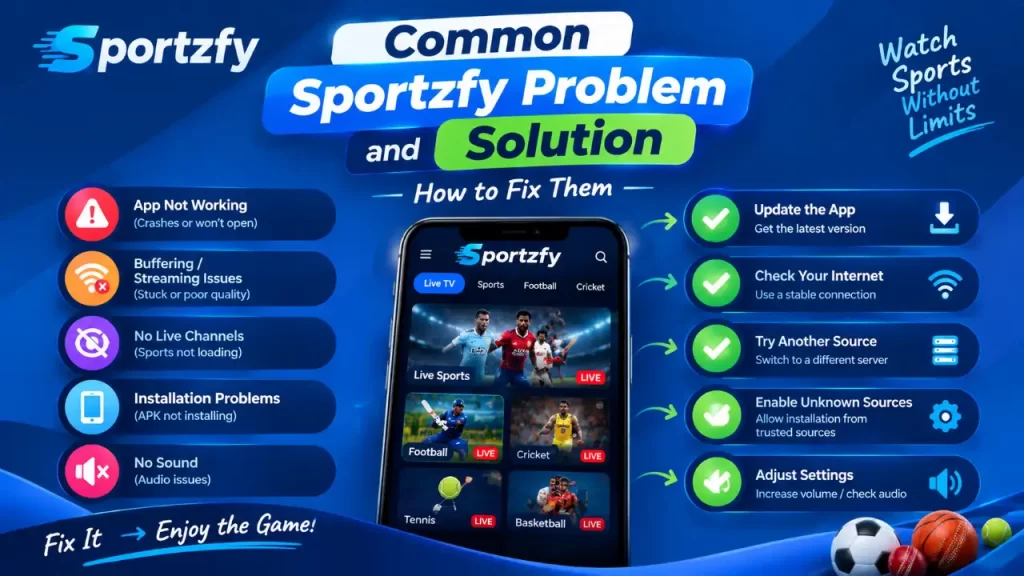
A few simple habits can help keep Sportzfy running more smoothly and reduce common streaming issues. Here are some useful tips to follow:
- Keep the App Updated: Use a compatible and reliable version of the app to avoid problems caused by outdated files.
- Maintain a Stable Internet Connection: Use reliable Wi-Fi or mobile data, especially when watching long live events.
- Clear Cache Regularly: Remove temporary cache files from time to time to prevent unnecessary app slowdowns.
- Keep Enough Storage: Leave some free space on your device so the app and Android system can work properly.
- Close Background Apps: Shut down apps you are not using to free up memory and system resources.
- Restart Your Device: A quick restart can clear temporary glitches and refresh your device’s available resources.
- Avoid Suspicious APK Files: Download app files only from sources you trust to reduce installation and security problems.
- Check Your Internet Before Streaming: If the connection is already unstable, fixing the network first can prevent buffering and playback interruptions.
Learn about older APK versions and check compatibility and file reliability before installing an earlier release.
Sportzfy Old Version APK →Frequently Asked Questions
Why is Sportzfy not opening on my Android device?
Restart your device, clear the app cache, and check that you have enough free storage.
Why does Sportzfy keep crashing?
Crashes can occur because of temporary app files, limited device resources, or compatibility issues. Clearing the cache and restarting the device may help.
Why are channels not loading in Sportzfy?
Check your internet connection and try another channel. If multiple channels are unavailable, the streaming source may be temporarily offline.
How can I reduce buffering while watching live sports?
Use a stable internet connection and lower the video quality if your network speed is limited.
Why is Sportzfy showing a black screen?
Restart the stream and reopen the app. Clearing the cache or trying another stream may also resolve the playback issue.
Conclusion
Sportzfy errors can be frustrating, especially when you are watching an important live sports event. Issues like buffering, app crashes, black screens, connection failures, and channels not loading can interrupt your viewing experience. Fortunately, many problems can be resolved with simple troubleshooting steps, such as checking your internet connection, clearing the app cache, restarting your device, freeing up storage, and using a compatible app version. Keeping your device properly maintained can also help prevent similar problems in the future.